If you’ve ever had to stitch together Selenium for your web app, Appium for your mobile app, and something else entirely for a native Windows or macOS tool, you already know the pain: three different frameworks, three different config formats, three different report styles. Uitester is a small, open-source Go command-line tool built to close that gap — one binary, one JSON scenario format, one report, and a pluggable backend that can drive a browser directly, or talk to any server that speaks the standard WebDriver protocol (Selenium Grid, Appium, WinAppDriver).
In this article we’ll walk through what uitester does, how it’s built, and — step by step — how to install it, write your first test scenario, and generate a polished Allure report from the results.
What Is Uitester?
Uitester is a Go CLI application that runs a scripted UI test — a scenario — against a chosen automation backend and reports the outcome. A scenario is a small JSON file: a name, which “tool” to use, and an ordered list of steps like click, input, or assert_text. You run it, and it tells you pass or fail, with a full trail of screenshots and logs behind every step.
It’s built around clean architecture: the core test-running logic has zero knowledge of chromedp, HTTP, or JSON — it only knows about interfaces. That’s not just an academic detail; it’s what makes the “connect any tool you need” promise real, rather than marketing copy.
Key Features
- One tool, browsers and desktop apps. A single WebDriver-protocol adapter talks to Selenium Grid (browsers), Appium (mobile apps), and WinAppDriver or Appium-Mac2Driver (native Windows/macOS desktop apps) — because they all speak the same protocol under the hood.
- Fast local browser testing. A built-in
chrometool drives Chrome/Chromium directly over the DevTools protocol via chromedp — no separate server required. - Pluggable tool registry. Adding a new automation backend means implementing one small Go interface and registering it — nothing else in the codebase changes.
- Automatic screenshots on every step. Pass or fail, each step gets a screenshot attached to its result automatically, so a failure is never a mystery.
- Structured input/action logging, with secret masking. Every step logs exactly what happened. Mark any field
"sensitive": true(passwords, tokens) and it’s masked in every report — console, JSON, and Allure — while the real value still reaches the driver. - Native Allure reports. Point uitester at an output folder and it writes a standard
allure-resultsdirectory — steps, parameters, screenshots, and logs — ready forallure serve. - Zero-drama config. Plain JSON for both app configuration and test scenarios — no YAML parser, no surprise dependency, easy to generate from other tools or CI pipelines.
- CI-friendly by design. Standard exit codes (
0pass,1fail,2bad usage) drop straight into any pipeline.
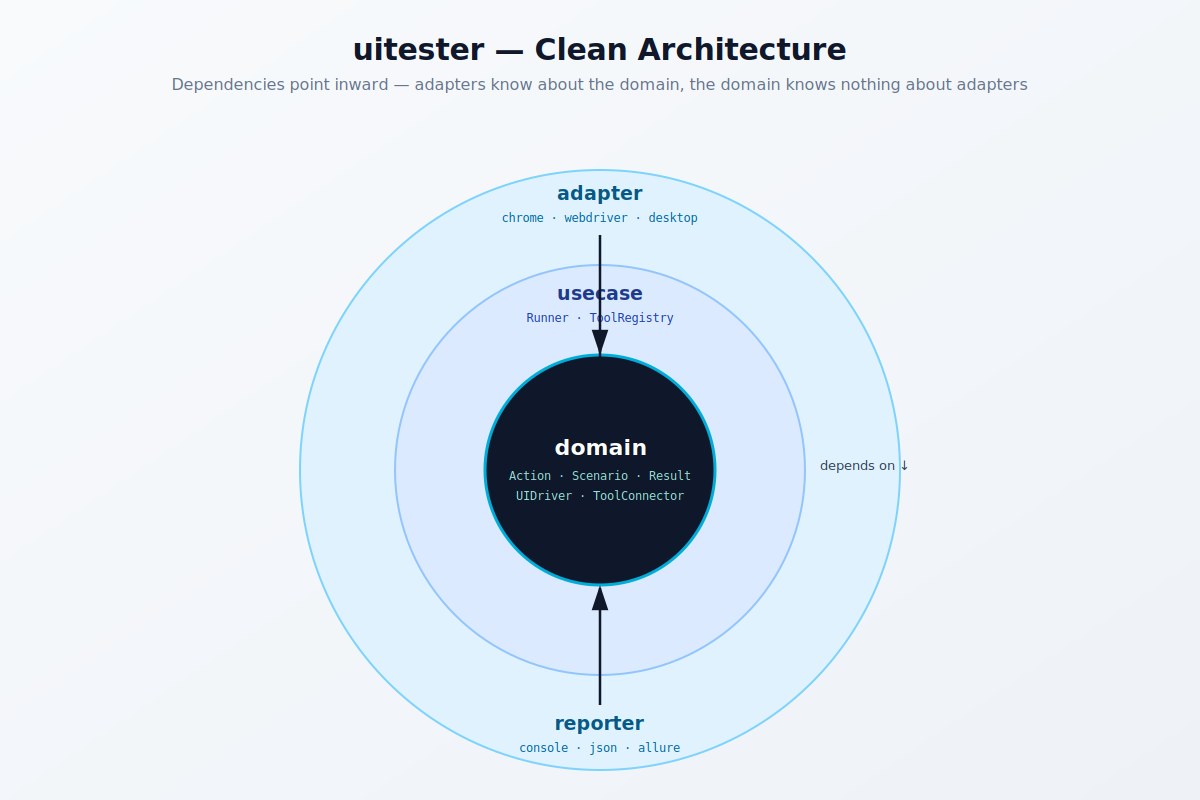
How It’s Built: Clean Architecture in Practice
Uitester’s code is organized in layers, and dependencies only point inward:
- Domain — the core entities (
Action,Scenario,Result) and the interfaces (UIDriver,ToolConnector,Reporter) every backend implements. No external libraries here at all. - Usecase — the
Runnerthat walks through a scenario’s steps and theToolRegistrythat resolves a tool name to a driver. This layer only talks to the domain interfaces, which is what makes it fully testable with fakes, no real browser needed. - Adapters — the actual implementations: the
chromedriver (chromedp), thewebdriverdriver (a dependency-free client for the W3C WebDriver protocol, built with nothing but Go’s standardnet/http), and a desktop driver stub. - Reporters — console output, a JSON report, and the Allure results writer, each just implementing one small interface.
The practical benefit: connecting a “required tool” is genuinely just writing one small adapter and registering it — you’re never patching the core test runner to support a new backend.
Installing Uitester
- Make sure you have Go 1.22 or newer installed.
- Unzip the project and build the binary:
unzip uitester.zip
cd uitester
go build -o uitester ./cmd/uitester
That’s it — uitester is now a single executable you can run from anywhere, or drop into a CI image.
Choosing How You’ll Drive the UI
Option A: Local Chrome (no server needed)
If Chrome or Chromium is installed on the machine, this is the fastest way to get started:
./uitester -config configs/config.example.json -scenario scenarios/example_login.jsonOption B: Selenium Grid, Appium, or WinAppDriver
For cross-browser testing, mobile apps, or native desktop apps:
- Start the relevant server (a Selenium Grid node,
appium, orWinAppDriver.exeon Windows). - Edit the tool’s
remote_urlandcapabilitiesin your config file. - Point your scenario’s
"tool"field at"selenium","appium", or"winappdriver".
Writing Your First Scenario
A scenario is a plain JSON file describing a name, a tool, an optional starting URL, and a list of steps:
{
  "name": "Login with valid credentials",
  "tool": "chrome",
  "base_url": "https://example.com/login",
  "steps": [
    { "type": "wait_for", "selector": "#username", "timeout": "10s" },
    { "type": "input", "selector": "#username", "value": "demo-user" },
    { "type": "input", "selector": "#password", "value": "demo-password", "sensitive": true },
    { "type": "click", "selector": "#login-button" },
    { "type": "assert_text", "selector": "#welcome-message", "value": "Welcome, demo-user" }
  ]
}
Notice the "sensitive": true flag on the password step — that single flag guarantees the real password never shows up in your console output, JSON report, or Allure report, while the login itself still works correctly.
Supported Step Types
navigate— open a URL (browser tools only)click— click the element matching a selectorinput— type a value into an elementwait_for— wait until an element appears, up to a timeoutassert_text— fail the step if an element’s text doesn’t matchassert_exist— fail the step if an element isn’t foundscreenshot— capture an extra, explicitly-named screenshotsleep— pause for a fixed duration
The runner fails fast — it stops at the first failed step so later steps don’t cascade into confusing secondary failures.
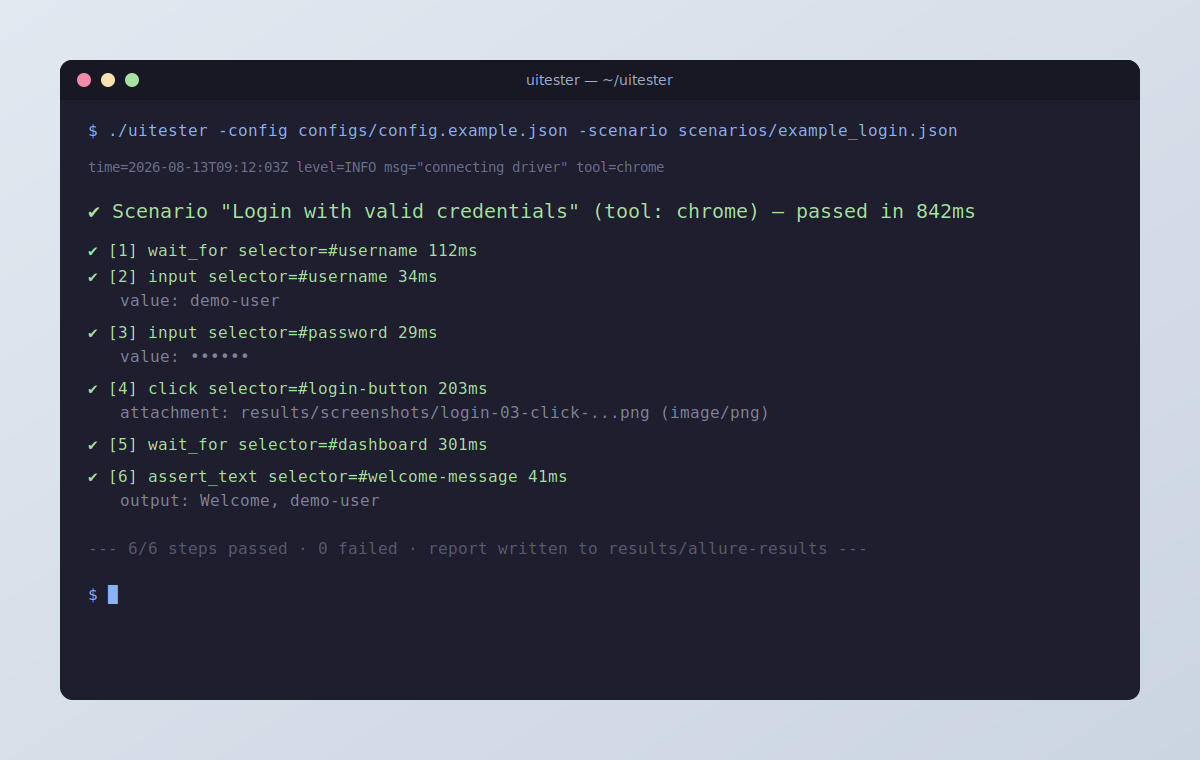
Automatic Screenshots and Input Logging
You don’t have to add a screenshot step after every action to get visual proof of what happened. By default, uitester captures a screenshot after every step — pass or fail — and attaches it to that step’s result, alongside a one-line log of exactly what was done. This is controlled in your app config:
{
  "screenshots": {
    "auto": true,
    "dir": "results/screenshots"
  }
}
Set "auto": false if you only want screenshots from explicit screenshot steps, or if you’re running against a backend that can’t capture images.
Getting Reports (Including Allure)
Console output prints automatically on every run. Two more reporters can be turned on in your app config:
{
  "reporters": {
    "json_path": "results/last_run.json",
    "allure_dir": "results/allure-results"
  }
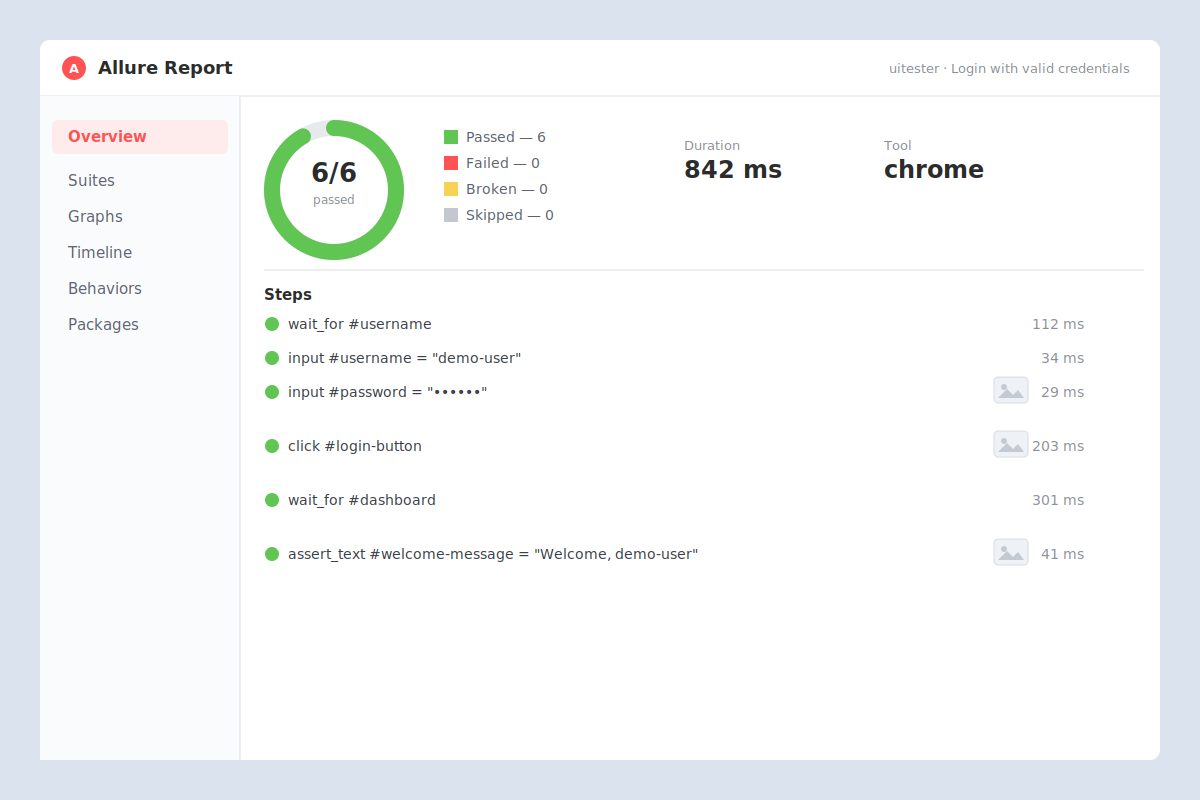
}json_pathwrites a single machine-readable JSON summary of the run.allure_dirwrites a standard Allure “allure-results” folder — steps, parameters, screenshots, and logs, all correctly formatted for Allure’s own report generator.
To view the Allure report, install the free Allure commandline and run:
allure serve results/allure-resultsThis opens a full interactive report in your browser — pass/fail history, a timeline per step, and every screenshot and log attached exactly where it happened.
Putting It Into CI
Uitester returns standard exit codes, so wiring it into a pipeline is a one-liner:
./uitester -config configs/config.example.json -scenario scenarios/example_login.json
if [ $? -ne 0 ]; then
  echo "UI test failed"
  exit 1
fi
Archive the results/ folder as a build artifact, and you’ve got screenshots, logs, and an Allure-ready report for every CI run.
Frequently Asked Questions
Does uitester replace Selenium or Appium?
No — it sits on top of them. The webdriver tool in uitester is a lightweight client that speaks to a Selenium Grid, Appium, or WinAppDriver server you’re already running (or spin up separately). Uitester’s job is to give you one consistent scenario format and report across all of them, plus a fast, server-free option for local Chrome testing.
Can it test native desktop applications, not just browsers?
Yes. Because WinAppDriver (Windows) and Appium-Mac2Driver (macOS) implement the same WebDriver protocol as Selenium, the exact same adapter that drives a browser through Selenium Grid can drive a native desktop app through those servers — only the remote_url and capabilities in your config change.
Is uitester free and open source?
Yes, it’s a small open-source Go project you build and run yourself — no license fees, no SaaS account required.
Leave a Reply