If you’ve ever wanted to run a large language model without signing up for an API key, paying per token, or sending your prompts to someone else’s server, HomeBred-LLM is worth a look. It’s a free, open-source desktop application that lets you download, run, and chat with open-weight AI models entirely on your own computer — on Windows, Linux, or macOS.
What makes it different from tools like Ollama is that there’s no background service, no Docker container, and no Python environment to manage. HomeBred-LLM embeds the inference engine directly inside the app itself, so you install one program and everything — model downloads, chat, GPU monitoring, and configuration — happens in a single window.
In this article, we’ll walk through what HomeBred-LLM can do and how to get started with it.
WHAT IS HOMEBRED-LLM?
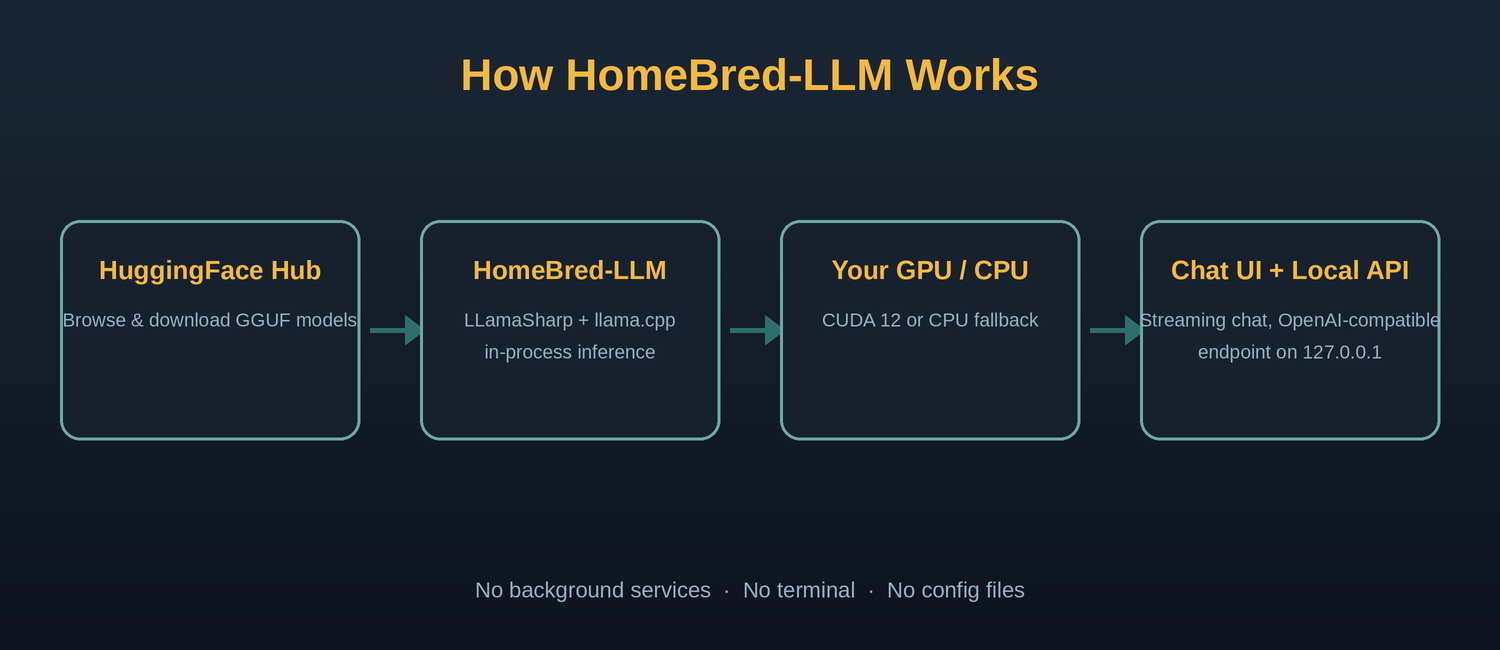
HomeBred-LLM is a cross-platform desktop app built on .NET 10 and Avalonia UI. Under the hood, it uses LLamaSharp, a C# binding for llama.cpp — the same inference engine that powers many other local-AI tools — but instead of running it as a separate process, HomeBred-LLM runs it in-process. That means there’s nothing extra to install or configure beyond the app itself.
The basic workflow looks like this: you find a model on HuggingFace, download it from inside the app, load it into memory, and start chatting. GPU and system metrics are collected automatically in the background, so you can see exactly how the model is performing on your hardware.
Because everything runs locally, your conversations never leave your machine. There’s no telemetry and no cloud dependency.
KEY FEATURES
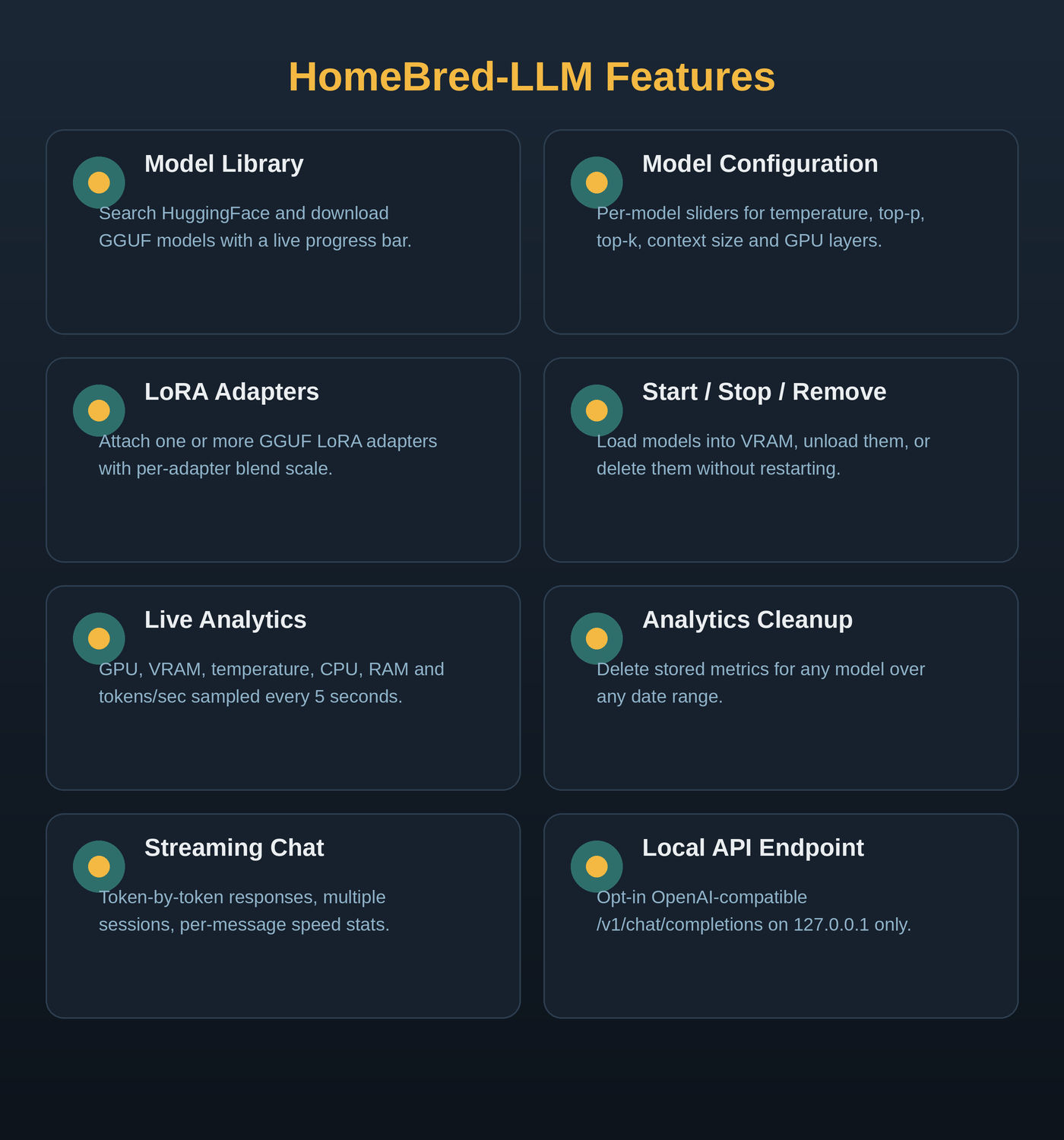
Model Library. Search HuggingFace directly from the app, browse available GGUF files by quantization level and file size, and download them with a real-time progress bar.
Model Configuration. Every model gets its own configuration screen with sliders for temperature, top-p, top-k, repeat penalty, context size, GPU layers, batch size, and a custom system prompt.
LoRA Adapters. You can attach one or more pre-trained LoRA adapters to a model to specialize its behavior, each with its own blend scale and an on/off toggle. Adapters apply to both chat and embeddings.
Start / Stop / Remove. Load a model into GPU memory when you need it, unload it when you don’t, or delete it completely — all without restarting the app.
Live Analytics. GPU utilization, VRAM usage, GPU temperature, CPU load, RAM usage, tokens per second, and time-to-first-token are all sampled every five seconds while a model is running.
Analytics Cleanup. Old metrics can pile up. You can delete analytics data for any model over any date range without affecting the model itself.
Streaming Chat. Responses stream in token-by-token, and you can keep multiple named chat sessions, each showing per-message speed statistics.
Local API Endpoint. If you want to use a model from another app or script, you can enable an OpenAI-compatible endpoint (POST /v1/chat/completions, with streaming, and POST /v1/embeddings) on a port of your choice. It’s opt-in per model and bound only to 127.0.0.1, so nothing is exposed to your network.
WHAT MODELS CAN YOU RUN?
HomeBred-LLM works with any model available as a GGUF file on HuggingFace, which covers most of the popular open-weight families, including:
- LLaMA 3 / 3.1 / 3.2 / 3.3 (Meta)
- Mistral / Mixtral (Mistral AI)
- Qwen 2 / 2.5 (Alibaba)
- Phi-3 / Phi-4 (Microsoft)
- Gemma 2 / 3 (Google)
- DeepSeek (DeepSeek AI)
- Any other architecture llama.cpp supports
For a good balance of quality and speed, the Q4_K_M, Q5_K_M, and Q6_K quantizations are generally recommended as a starting point.
SYSTEM REQUIREMENTS
Windows: .NET 10.0 required, NVIDIA GPU (CUDA 12) optional, CPU-only fallback supported.
Linux: .NET 10.0 required, NVIDIA GPU (CUDA 12) optional, CPU-only fallback supported.
macOS: .NET 10.0 required, GPU acceleration not currently supported, CPU-only fallback supported (Apple Silicon/Metal planned).
A few practical notes:
- Disk space varies a lot by model — expect roughly 2 GB for a 7B model at Q4 quantization, up to around 40 GB for a 70B model.
- VRAM needs at least 4 GB for small models; 8–16 GB is recommended for 13B-and-up models running fully on GPU.
- Apple Silicon currently runs on CPU; a Metal backend is planned for the future.
GETTING STARTED: A STEP-BY-STEP GUIDE
- Install the app
The easiest way to get started is to download a pre-built release:
- Go to the project’s Releases page on GitHub.
- Download the archive that matches your platform (win-x64, linux-x64, or osx-x64).
- Extract the archive and run the executable — there’s no installer, and nothing is written outside its own data folder.
If you’d rather build it yourself, you’ll need the .NET 10 SDK. Clone the repository, then run: dotnet run –project HomeBred-LLM
Or publish a self-contained build for your platform: dotnet publish HomeBred-LLM -c Release -r win-x64 –self-contained -o ./publish/win (swap win-x64 for linux-x64 or osx-x64 as needed).
- Download a model
Open the Model Library inside the app and search for a model by name — for example, “Llama 3.1 8B” or “Qwen 2.5 7B.” Pick a GGUF file with a quantization level that fits your hardware (Q4_K_M is a solid default) and click download. A progress bar shows you how far along it is.
- Configure it (optional)
Before starting the model, you can open its configuration screen and adjust temperature, top-p, top-k, context size, GPU layers, and other parameters. If you don’t need anything special, the defaults are a reasonable starting point.
- Start the model and chat
Click Start to load the model into memory. Once it’s loaded, open a new chat session and start typing. Responses stream in token-by-token, and you’ll see live tokens-per-second and latency stats for each message.
- Monitor performance
While a model is running, the Analytics screen shows GPU utilization, VRAM usage, temperature, CPU and RAM load, updated every five seconds. This is useful for figuring out whether a model is too large for your hardware or whether you have headroom to try something bigger.
- Stop or remove the model
When you’re done, click Stop to unload the model from memory without deleting it — handy if you plan to use it again soon. If you want to free up disk space, you can remove it entirely from the Model Library.
- (Optional) Enable the local API
If you want to call the model from a script or another application, open the model’s settings and enable the local API endpoint. This gives you an OpenAI-compatible /v1/chat/completions endpoint on 127.0.0.1 at a port you choose, so you can point existing OpenAI-client code at your own machine instead of the cloud.
WHERE YOUR DATA LIVES
Everything HomeBred-LLM stores stays in a single folder per platform:
Windows: %LOCALAPPDATA%\HomeBred-LLM
Linux: ~/.local/share/HomeBred-LLM/
macOS: ~/Library/Application Support/HomeBred-LLM/
Inside, you’ll find a SQLite database (homebred.db) holding your models list, configurations, analytics, and chat history, plus a models/ folder with the downloaded GGUF files. Uninstalling is as simple as deleting the app binary and this folder — there are no registry entries or system-wide changes to clean up.
WHY RUN LLMS LOCALLY?
There are a few good reasons people choose a local-first tool like HomeBred-LLM over a cloud API:
- Privacy. Prompts and responses never leave your machine.
- Cost. No per-token billing — once a model is downloaded, running it is free.
- Offline access. Once a model is on disk, you don’t need an internet connection to use it.
- Control. You choose the exact model, quantization, and parameters, and can swap in LoRA adapters to customize behavior.
The trade-off, as with any local inference tool, is that you’re limited by your own hardware — larger models need more VRAM and RAM, and will run slower on CPU-only systems.
FINAL THOUGHTS
HomeBred-LLM is a solid option if you want to experiment with open-weight language models without wrestling with Docker, Python environments, or a command-line server. Everything from downloading a model to monitoring GPU usage to exposing a local API happens inside one app.
The project is open source under the MIT license and welcomes contributions — the maintainers have flagged some good first issues, including AMD GPU support, an Apple Silicon/Metal backend, and CSV/JSON export for analytics, for anyone interested in getting involved.
You can find the project, download the latest release, or browse the source code on GitHub: https://github.com/Eisenmann/HomeBred-LLM
Leave a Reply